

Does the thought of creating your own digital products leave you feeling more panicked than passionate? You scroll through Etsy, admiring the beautiful planners and wall art, but a little voice whispers, “I’m not a designer. I could never make that.” That feeling of overwhelm is real, but it doesn’t have to be your story. What if you could build a profitable shop with a tool you can learn in an afternoon? This guide is your calm, gentle path to mastering Canva for Etsy digital products, even if you’re starting from zero.
Forget the confusion and guesswork. Here, we’ll walk through the simple, step-by-step process of creating your very first product, from a blank page to a beautiful, finished file. We’ll demystify Canva’s commercial use rules so you can design with total confidence. You’ll also get actionable ideas to make your products look unique and professional-no cookie-cutter templates here. By the end, you’ll understand exactly how to save and deliver your files, turning that creative spark into a real, sellable product. Let's build your calm hustle, one design at a time.
Key Takeaways
- Understand the simple, most important rule for using Canva legally, so you can create and sell your digital products with total confidence.
- Follow a foundational step-by-step process for creating your first digital product that you can apply to any future idea.
- Discover profitable product ideas beyond planners and learn the key to standing out in a crowded market by being different, not just first.
- Master the simple technical process of using Canva for Etsy digital products, from initial design to delivering the final files to happy customers.
Why Canva is the Perfect Tool for Your Etsy Digital Product Hustle
Welcome to your calm and creative side hustle journey. If you’ve ever dreamed of building a source of passive income but felt stopped by the thought, “I’m not a designer,” I want you to take a deep breath. You don’t need a fancy art degree or expensive, complicated software to succeed. You just need a brilliant idea and the right tool to bring it to life.
That tool is Canva. Since its launch, Canva's design platform has empowered millions of entrepreneurs to create professional-quality graphics without the steep learning curve. It’s the ultimate partner for turning your creativity into digital products that people are excited to buy. Let’s demystify the process and show you how simple it can be.
Breaking Down the Fear: You CAN Be a Designer
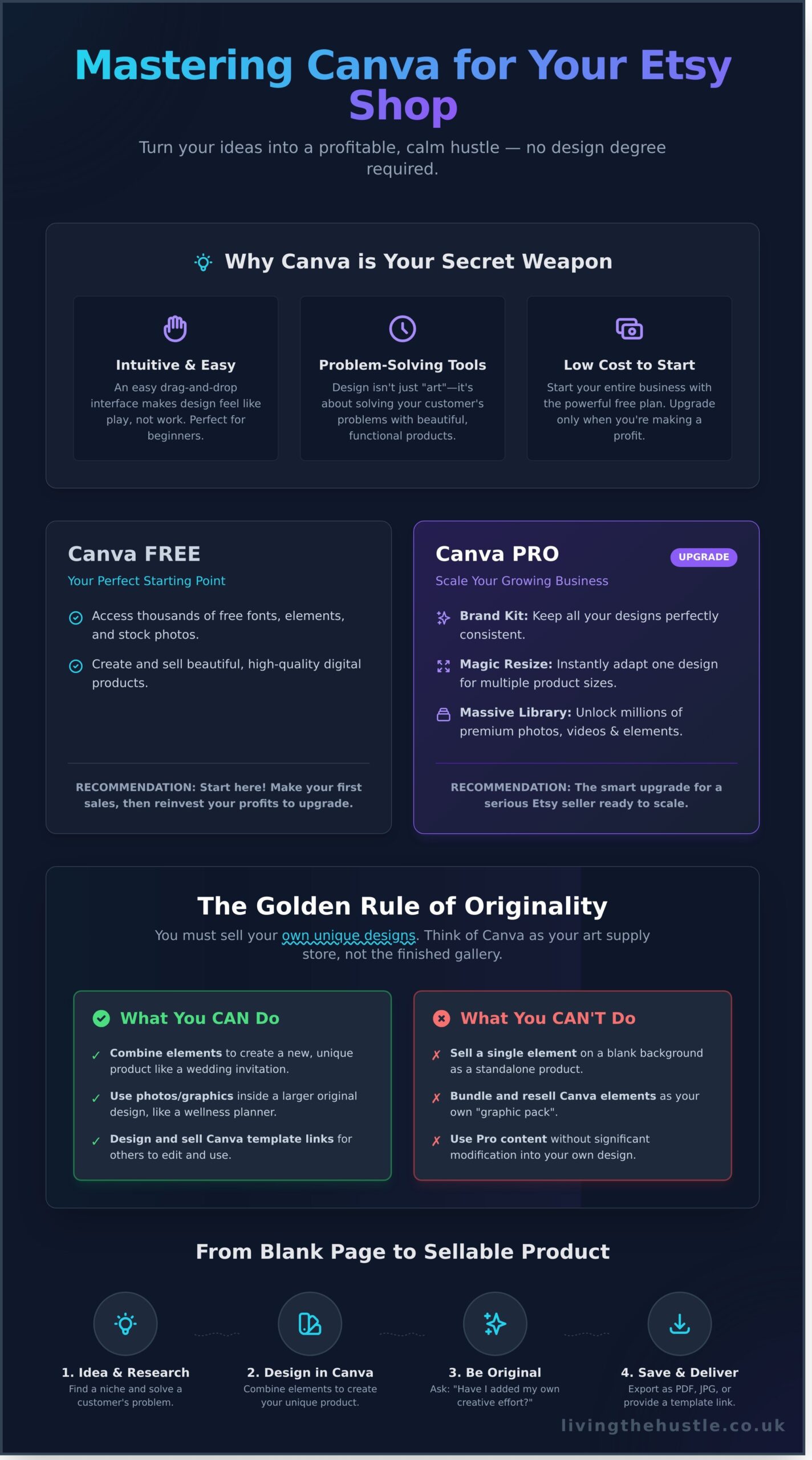
The secret to design is that it’s not about being “arty”-it’s about solving a problem for your customer. Canva understands this. Its intuitive drag-and-drop interface makes creation feel more like play than work. You can start with thousands of high-quality templates, but think of them as a gentle first step, not a final destination. Your real value comes from customizing them to meet your customer’s specific needs, whether it's a budget planner that simplifies their finances or a social media template that saves them time.
Canva Free vs. Pro for Etsy Sellers
One of the best things about starting your journey with Canva for Etsy digital products is the low barrier to entry. You can start building your empire without spending a dime.
- Canva Free: This is your perfect starting point. The free version gives you access to thousands of fonts, elements, stock photos, and templates. You can absolutely create and sell beautiful, high-quality products using only the free plan.
- Canva Pro: This is the upgrade you make when your business starts growing. For a small monthly fee, you unlock game-changing features like the Brand Kit (to keep your designs consistent), Magic Resize (to instantly turn one design into multiple product sizes), and a massive library of premium photos, videos, and elements.
Our honest recommendation? Start with the free version. Get comfortable, make your first few sales, and then reinvest that profit into a Pro subscription. It’s a smart, sustainable way to scale your calm hustle with purpose, not panic.
The Legal Side Made Simple: Using Canva to Sell on Etsy
Let's talk about the legal stuff. I know this part can feel intimidating, but we're going to calmly navigate the rules so you can create with confidence. The most important rule to remember when creating Canva for Etsy digital products is this: you must sell your own unique designs. You cannot simply take something Canva made and resell it as your own.
This means you can't sell Canva elements on their own (what they call ‘standalone' content). Your product must be an original design that you created by combining and modifying various elements. Think of Canva as your art supply store, not the finished art gallery. You're the artist who puts it all together.
What You CAN Do with Canva Content
The good news is, you have so much creative freedom! The key is transformation. You are absolutely allowed to:
- Combine various graphics, fonts, and color palettes to create a completely new and unique wedding invitation template.
- Use Canva's stock photos and graphic elements within a larger digital product you designed, like a wellness planner or an e-book.
- Design social media templates for other small business owners, which they will then edit and use in Canva. (These are sold as Canva template links).
What You CAN'T Do with Canva Content
To protect both yourself and Canva's creators, there are a few clear boundaries. It's crucial to understand that according to Canva's licensing terms, you cannot simply resell their assets. To stay on the right side of the rules, avoid the following:
- Taking a single graphic (like a flower illustration), placing it on a white background, and selling it as a wall art printable.
- Downloading a bunch of Canva elements (like icons or patterns) and selling them as a “graphic pack” on Etsy.
- Using a Pro-only photo in a design you sell as a static file (like a PDF or JPG). Pro content must be used in a unique design you created.
The Golden Rule of Originality
Feeling unsure? Here's a simple question to ask yourself: “Have I put my own creative effort into this?” Your goal is to transform Canva's elements into something that is uniquely yours. When creating Canva for Etsy digital products, you are the designer. You are adding the value. Always aim to:
- Mix and match different fonts and change their colors and sizing.
- Combine multiple graphic elements to create a new scene or pattern.
- Add your own text, layouts, and creative flair to make the design truly original.
Your First Digital Product: A Step-by-Step Canva Tutorial
Ready to move from idea to action? Let's take a deep breath and create your very first asset together. This simple, step-by-step tutorial will show you how to build a weekly planner printable. This process is the perfect, gentle introduction to using Canva for Etsy digital products. Follow along to replace that feeling of overwhelm with calm confidence. The skills you learn here are the foundation for everything you'll create.
Step 1: Setting Up Your Document
Getting your canvas ready is the first calm step. Inside Canva, click “Create a design” and choose “Custom size.” For a standard printable that customers can easily use at home, this is key.
- Choose Dimensions: Select “Inches” and enter 8.5 x 11 for US Letter or switch to “mm” and enter 210 x 297 for A4.
- Set Your Margins: Go to File > View settings > Show margins. This creates a safe printing area and gives your design a clean, professional border.
- Name Your File: Give your project a clear name like “Weekly Planner – US Letter – V1” to stay organized from the start.
Step 2: Designing Your Planner Page
Now for the fun part! You don't need to be a designer to create something beautiful. Start with simple shapes. Press ‘L' on your keyboard to add a line or ‘R' to add a rectangle for your daily sections. Keep it simple and clean.
- Choose Your Fonts: Pick two complementary fonts. Try a friendly script like “The Seasons” for the main heading and a clean, readable font like “Montserrat” for the days of the week.
- Add a Simple Graphic: Search in the “Elements” tab for something that matches your brand, like “minimalist leaf” or “simple star.” Just one or two small elements can add a touch of personality without creating clutter.
Step 3: Branding and Final Touches
The final touches are what make your product look polished and professional. Add your shop name or a small logo in the bottom corner-it builds brand recognition without being distracting. Before you finish, zoom in and proofread every single word. Check for typos in headings and days of the week. Finally, use Canva’s pink guide lines to ensure every box, line, and piece of text is perfectly aligned. A well-spaced design feels calm and is easier for your customer to use.
Beyond Planners: 4 More Profitable Digital Product Ideas for Canva
Now that you have a feel for the design process, let's move beyond the basics and spark some new ideas. Digital planners are fantastic, but they're just the beginning of what you can create. Each product type has its own unique considerations, from file formats to customer needs, but don't let that overwhelm you. Think of these ideas as a gentle launchpad for your own creative niche.
Here are four more popular and profitable Canva for Etsy digital products you can start designing today.
Printable Wall Art
Printable art is a wonderfully creative niche that allows you to sell your unique style. Customers love the instant gratification of downloading and printing art at home. To create a professional product that gets glowing reviews, focus on quality.
- Design in High Resolution: Always create your designs at 300 DPI (Dots Per Inch) to ensure they look crisp and clear when printed, not pixelated.
- Offer Multiple Size Ratios: Include several files in common frame ratios (like 2:3, 3:4, 4:5) so your customers can easily print the perfect size for their space.
- Curate Your Elements: Combine beautiful fonts and high-quality graphics to create a piece that feels unique and professionally designed.
Social Media Templates
Feeling confident with your design skills? Why not help other small business owners shine online? Social media templates are in high demand and are a perfect fit for Canva's platform. Your customers can easily edit them with their own branding, saving them hours of work.
- Design for Specific Platforms: Create templates specifically for Instagram Posts, Instagram Stories, or Pinterest Pins, as each has unique dimensions and best practices.
- Use a Canva Template Link: You'll deliver these not as a final file, but as a special shareable link that allows your customer to open and edit the design in their own Canva account.
E-books and Workbooks
If you have knowledge to share, an e-book or workbook is an incredible way to package it. Canva makes it simple to design professional, multi-page documents without needing complex software. The key is creating a seamless reading experience from the first page to the last.
- Focus on Readability: Use clear, easy-to-read fonts and generous spacing to avoid a cluttered look.
- Keep Your Design Consistent: Use the same fonts, colors, and layout elements throughout the document for a polished and cohesive feel.
- Get Inspired: Need help organizing your own ideas? We used these exact principles to create our Blog, Brand & Bloom Workbook.
Digital Stickers for Planners
A fun and endlessly creative option, digital stickers are designed for use in digital planners on apps like GoodNotes. They are individual images that users can copy and paste into their planner pages. It's a fantastic way to offer small, affordable, and highly desirable products.
- Export as a PNG: To make sure your stickers have no background, you must export them as a PNG file with the “transparent background” option checked.
- Bundle Them Up: Arrange multiple, related stickers onto a single page (a “sticker sheet”) and sell them as a themed bundle.
How to Stand Out When the Etsy Market Feels Crowded
Let's be honest. When you first start exploring how to use Canva for Etsy digital products, it can feel like you've arrived late to the party. The market looks saturated, and a wave of overwhelm can set in. But here’s the secret: you don’t need to be the first person to sell a digital planner. You just need to be different and better.
Your unique perspective, experiences, and style are your greatest assets. Instead of feeling discouraged by the competition, see it as proof that there is a hungry market. Now, let’s turn that crowded feeling into a clear, calm plan for standing out.
Niche Down to a Specific Audience
Stop trying to sell to everyone. Instead of creating generic ‘planners,' what if you created ‘weekly meal planners for busy moms on a budget'? By focusing on a specific person, you can solve their unique problems much more effectively. This instantly sets you apart and makes your marketing easier. Don't guess what people are looking for; use a tool like eRank to find less competitive keywords and discover a niche that is waiting for you.
Develop a Signature Style
Your Etsy shop should feel like a cohesive, beautiful brand, not a random collection of files. Developing a signature style with a consistent color palette and font pairing builds instant recognition and trust. When a customer sees your designs, they should know it's yours. This style isn't just about looking pretty; it's about creating a brand identity that connects directly with your niche audience and makes them feel understood.
Focus on High-Quality Design
Anyone can use a basic template, but successful sellers focus on creating a premium experience. Go beyond the defaults. Ensure your designs are polished, professional, and incredibly easy for your customer to use. High-quality design communicates value and justifies your price, turning a one-time buyer into a loyal fan. Ready to level up your skills? Explore The Art of Design course to create products that truly shine.
From Canva to Customer: Saving and Delivering Your Digital Files
You’ve done it! You’ve poured your creativity into a beautiful design, and that feeling is incredible. Now for the final, crucial step: getting your creation from Canva into your customer's hands. Don't let the technical details cause any overwhelm. Getting this part right is a simple way to ensure happy customers, glowing reviews, and fewer support messages in your inbox. This is the final polish that makes your Canva for Etsy digital products truly shine.
Let's walk through this last step with calm confidence.
Choosing the Right File Format
Think of the file format as the perfect packaging for your product-it needs to be right for how the customer will use it. There’s no need to offer every option, just the one that makes the most sense. Here are the most common choices:
- PDF Print: This is your go-to for anything meant to be printed. Think planners, checklists, workbooks, and wall art. It preserves the highest quality and ensures your design looks just as you intended on paper.
- PNG: Select this format when you need a transparent background. It’s perfect for digital stickers, logos, or clipart elements that customers can layer over other designs.
- JPG: A good option for some digital art or photos where file size is a concern. However, for most printables, PDF Print is the superior choice for maintaining crisp, clear quality.
How to Deliver a Canva Template Link
If you're selling an editable template, you can't upload the template itself to Etsy. Instead, you'll provide a special link. It’s a simple and professional process. Just create a new, simple PDF document in Canva. Inside, you can add a thank you note, brief instructions, and the all-important link. To get it, go to your finished template in Canva, click Share in the top right, and select Template link. Copy that link and paste it into your PDF. This PDF is the file your customer will download from Etsy.
Packaging Your Files for Etsy
Etsy has a 20MB file size limit for each of the five upload slots per listing. Feeling stuck? Don't panic. If your files are large or you’re offering a bundle (like a set of wall art in five different sizes), the solution is a ZIP file. A ZIP file allows you to compress and bundle multiple files into one single, neat download for your customer. Remember to name your files clearly (e.g., Boho_Wall_Art_A4.pdf and Boho_Wall_Art_8x10.pdf) so your customer knows exactly what they’re opening. This small bit of organization makes a huge difference in their experience.
By thoughtfully choosing your formats and packaging your files, you create a seamless and professional journey for your buyer. This attention to detail is what builds trust and turns a one-time purchase into a repeat customer for your amazing Canva for Etsy digital products.
Your Calm Canva Hustle Awaits
You've just walked through the entire process, from a blank canvas to a customer-ready file. As you can see, you don’t need to be a design pro to create beautiful, sellable products. This guide has shown you that with a little guidance, Canva is an incredibly powerful (and gentle) tool. Mastering Canva for Etsy digital products isn't about complex software or sleepless nights; it's about having a clear, calm path to follow.
This is your gentle first step. But what if you had a complete, proven roadmap to turn this new skill into a real passive income business? Imagine trading that feeling of overwhelm for a sense of confident purpose.
The Passive Income Society is that exact roadmap, designed for beginners by a top 1% Etsy seller. Join thousands of students who are building their own calm hustle. If you're ready to build a real passive income business on Etsy, this is your invitation. Explore the Passive Income Society course and start your journey today.
Your creative business is waiting. You've totally got this.
Frequently Asked Questions About Canva for Etsy
Do I really need Canva Pro to sell digital products on Etsy?
Let's be honest-you can absolutely start selling on Etsy with the free version of Canva. It’s a fantastic tool to get your shop off the ground without any initial cost. However, investing in Canva Pro is a game-changer once you're ready. It gives you access to a huge library of premium fonts and elements, the ability to save with transparent backgrounds (a must for some products!), and features that will save you so much time. Start free, then upgrade with confidence.
Can I sell a digital product that I made from a Canva template?
Yes, you can, but with one very important rule: you must significantly modify the template to make it your own. You cannot simply resell a Canva template as is. Think of templates as a starting point for your creativity. Change the fonts, colors, and layout, and add your own unique graphics or text. This ensures you are selling a product that is truly yours and respects Canva's licensing terms. Your unique touch is what makes your Canva for Etsy digital products valuable.
How do I find ideas for digital products that will actually sell?
Feeling stuck is totally normal! The best way to find ideas is to start with a problem. What do people need help organizing, planning, or celebrating? Look at the ‘bestsellers' on Etsy in niches you're interested in-not to copy, but for inspiration. You can also use tools like Pinterest Trends or even the Etsy search bar's autocomplete suggestions to see what real customers are actively looking for. Focus on being helpful, and the ideas will follow.
What are the best canvas sizes to use for Etsy digital printables?
This depends on the product, but there are a few go-to sizes that customers love. For standard planners and worksheets, use 8.5 x 11 inches (US Letter) or A4 for international customers. For wall art, it's best to offer a few common aspect ratios so buyers can print the size they need. Popular ratios include 2:3 (for prints like 8×12 in) and 3:4 (for prints like 18×24 in). Always save at 300 DPI for high-quality printing.
Is it legal to use Canva fonts in products I sell on Etsy?
Yes, it is perfectly legal to use Canva's fonts in your Etsy products! This applies to both free and Pro fonts. The one crucial rule is that you must sell them as part of a finished, flattened design-like a PDF, JPG, or PNG. You cannot resell the font files themselves or use them in a way that allows your customer to type with them in a template. As long as the font is part of your unique creation, you are good to go.
How do I handle customer questions if they can't use Canva?
This is a common worry, but you can handle it with a gentle and prepared approach. The best strategy is to include a simple PDF instruction guide with your download, showing basic steps with screenshots. For more complex templates, a short video tutorial (made with a free tool like Loom) can be a lifesaver. Being patient and having these resources ready will not only solve their problem but also show them you provide amazing customer service, turning a moment of confusion into confidence.