
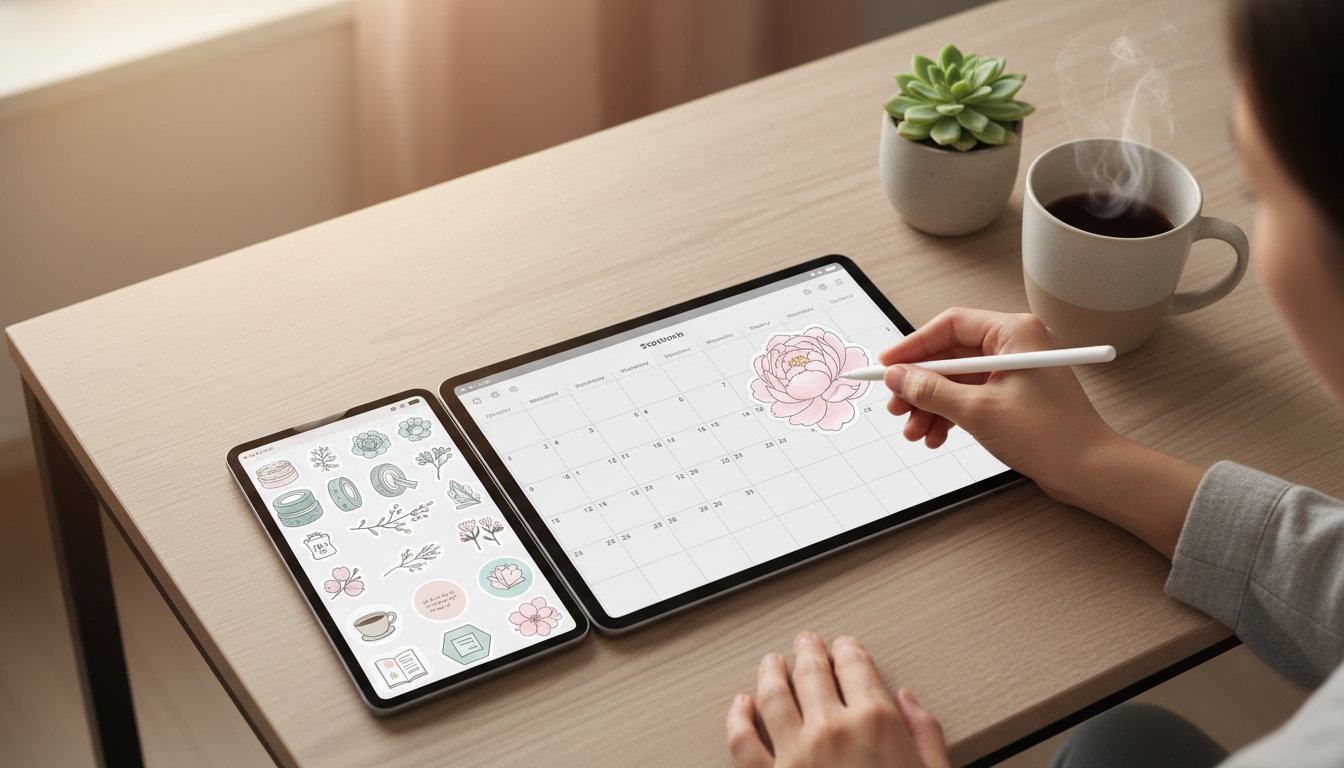
What if you could transform your digital planning routine into a peaceful creative ritual without ever needing to pick up a professional sketchpad? You might feel like you aren't artistic enough to design your own layouts, or perhaps the technical side of transparent backgrounds feels like a hurdle you aren't ready to jump. It's completely normal to feel overwhelmed by the sheer number of apps and settings available today. You deserve a creative outlet that feels like a deep breath rather than a technical chore.
In this guide, you will discover how to make digital stickers for Goodnotes using simple, accessible tools that turn your ideas into functional art. We will show you how to create beautiful stickers even if you've never designed a thing in your life. We'll walk through the process step by step, covering everything from mastering PNG transparency to importing your first custom set into Goodnotes 6. You will also learn how these little creations can become a manageable side project on Etsy, where the 6.5% transaction fee is a small price for the joy of sharing your work. Let's start building your digital inventory with confidence and ease.
Key Takeaways
- Identify whether the hand-drawn style of Procreate or the user-friendly templates in Canva best support your creative vision and hardware.
- Learn the simple technical settings for how to make digital stickers for Goodnotes, including the ideal canvas size for crisp, clear designs.
- Master the stress-free Split Screen technique to organize your custom stickers into a dedicated Goodnotes sticker book for easy access.
- Explore how to turn your personal organizing ritual into a gentle side project by sharing your unique designs on marketplaces like Etsy.
- Embrace a sustainable approach to planning with infinite digital reuse that eliminates physical clutter and paper waste.
What Are Digital Stickers and Why Use Them in Goodnotes?
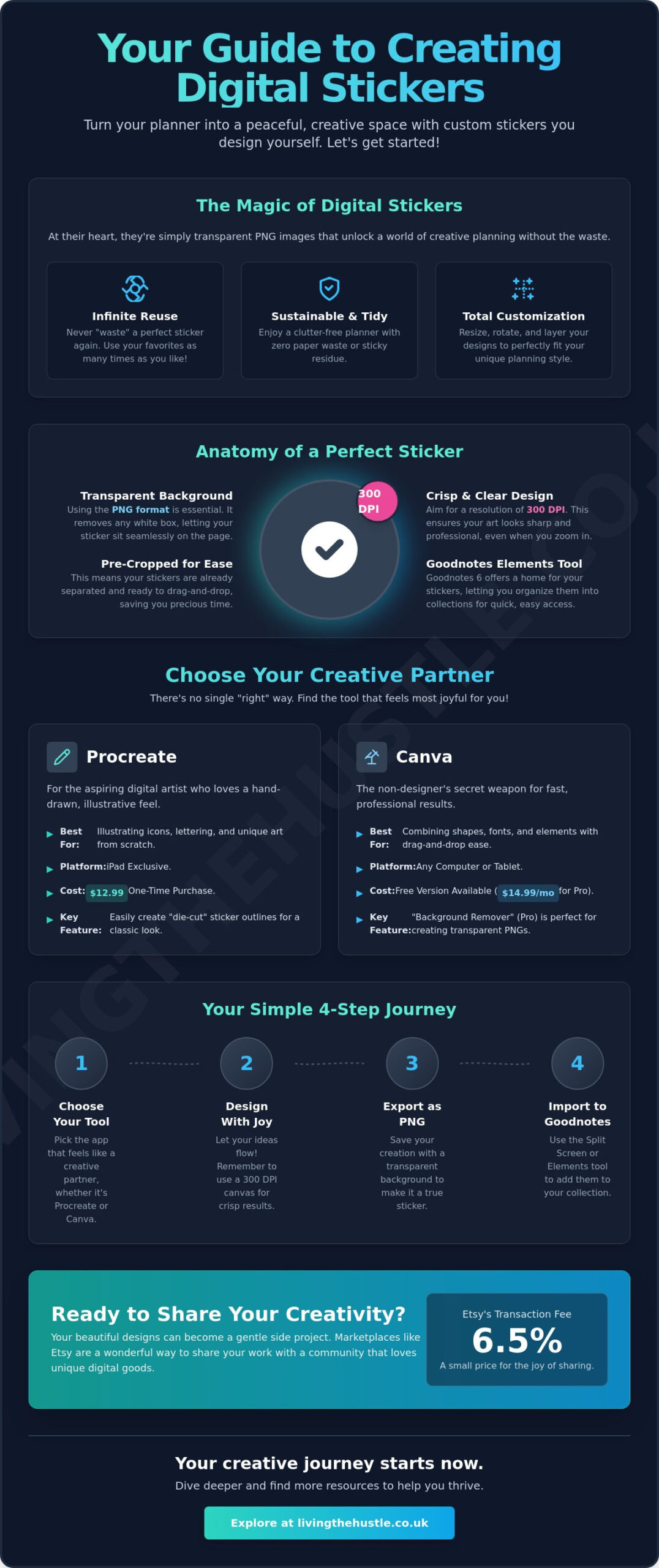
Have you ever felt the tiny spark of hesitation before using a physical sticker because you didn't want to “waste” it on the wrong page? Digital stickers remove that subtle pressure entirely. At their core, digital stickers are simply transparent PNG files. They function as a form of Digital art that you can layer onto your digital planner pages. When you understand how to make digital stickers for Goodnotes, you unlock a world of infinite reuse. You can resize them, move them, and use your favorite designs hundreds of times without ever running out of stock.
This approach to organization is deeply rooted in a sense of calm. There is no physical clutter, no sticky residue, and no paper waste. It's a sustainable way to express your personality while keeping your schedule clear and manageable. Goodnotes has become the industry standard for this hobby because it treats these images like real objects. You can pick them up, rotate them, and tuck them away in organized collections. Whether you're using individual image files or a pre-cropped sticker sheet, the goal is to make your planning routine feel like a peaceful creative retreat rather than a chore.
The Anatomy of a Perfect Digital Sticker
A high-quality digital sticker needs to feel seamless on your page. This starts with a transparent background. If you save a file as a standard JPEG, you'll often see a distracting white box around your art. By using the PNG format, your sticker will have “invisible” edges, allowing it to sit naturally over your planner's lines or colors. To ensure your designs look beautiful even when you zoom in to write a quick note, always aim for a resolution of 300 DPI. This creates a crisp, professional finish that honors the effort you put into your design. You may also hear the term “pre-cropped.” This simply means the stickers are already separated and ready to use, which saves you the extra step of cropping them manually within the app.
Why Goodnotes is the Best Home for Your Designs
Goodnotes 6 offers a particularly soothing experience for sticker lovers. The app includes a feature called the Elements tool, which acts as a dedicated space for your favorite icons and decorations. The Goodnotes Elements tool is a digital drawer for your creativity. Instead of hunting through your photo gallery or file folders, you can save your most-used stickers directly into categories like “Work,” “Self-Care,” or “Habit Trackers.” This organization helps maintain your focus and flow. By learning how to make digital stickers for Goodnotes, you're not just creating images; you're building a personalized toolkit that supports your productivity and peace of mind every single day.
Choosing Your Design Tools: Canva vs. Procreate
When you're ready to start your creative journey, the first decision is choosing a tool that feels like a partner rather than a hurdle. There isn't a single “right” way to begin. Instead, there's the path that feels most peaceful for you. If you already own an iPad and enjoy the tactile feel of drawing, Procreate is often the favorite choice. If you prefer working on a laptop or feel more comfortable with drag and drop layouts, Canva offers a beautifully accessible alternative. Both paths lead to the same rewarding outcome: learning how to make digital stickers for Goodnotes that reflect your unique style.
Procreate: For the Aspiring Digital Artist
Many creators find a sense of tranquility in the rhythmic movement of an Apple Pencil across the screen. Procreate is an iPad-exclusive app that costs a one-time fee of $12.99. It's built for those who want to illustrate their own icons, washi tapes, or hand-lettered quotes from scratch. One of its best features for sticker makers is the ability to create smooth “sticker outlines” using the brush tool, giving your art that classic die-cut look. If you want to dive deeper into these creative techniques, you might enjoy exploring The Art of Design to help your digital products truly stand out. It's a small investment for a lifetime of creativity without the pressure of a monthly subscription.
Canva: The Non-Designer’s Secret Weapon
Canva is a fantastic choice if you feel “not creative enough” to draw every line yourself. You can use it on any computer or tablet, and the basic version is completely free. By combining Canva's vast library of shapes, fonts, and elements, you can build professional sticker layouts in minutes. If you upgrade to Canva Pro for $14.99 per month, you gain access to the “Background Remover” tool. This is essential for creating the transparent PNG files we discussed earlier. However, it's vital to stay mindful of licensing. When you use third-party graphics, you should understand the basics of Copyright and Digital Files to ensure your work is protected and ethical. Mastering how to make digital stickers for Goodnotes using these tools is a gentle way to build confidence in your design skills while creating something functional and beautiful.
If you're feeling inspired to turn these skills into a sustainable side project, our Passive Income Society Course can help you navigate the next steps with ease.
Step-by-Step: Creating Your First Digital Sticker Pack
Have you ever felt stuck staring at a blank screen, unsure of where to place the first stroke? Learning how to make digital stickers for Goodnotes is much easier when you break the process into manageable phases. The most peaceful way to start is by choosing a cohesive theme. Whether it's “Spring Garden” or “Minimalist Office,” having a vision prevents the creative overwhelm that often leads to unfinished projects. Before you draw a single line, set your canvas size to 1000×1000 pixels. This square format is the standard for individual stickers, ensuring they remain crisp and clear when you import them later.
Working in layers is a vital part of this journey. Think of layers as transparent sheets of paper stacked on top of each other. By keeping your sketches, colors, and outlines on separate layers, you maintain total control. If you decide you don't like a specific shade of green later on, you can change it without affecting your entire design. This flexibility keeps the process low-stress and encourages you to experiment with your style.
Phase 1: Sketching and Designing
Start with simple, familiar shapes that provide immediate value to your planning. Sticky notes, basic washi tape strips, and circular habit trackers are perfect beginner projects. These don't require advanced drawing skills, yet they look beautiful once they're on a digital page. To keep your collection looking professional, stick to a limited color palette of four or five shades. This creates a sense of harmony across your entire pack. If you need help organizing your ideas, you can use our Calm Creators Content Planner to map out your collection before you even open your design app.
One secret to making your stickers look authentic is the “White Outline” trick. By adding a thin white border around your design, you give it a classic die-cut appearance. This helps the sticker pop against different planner backgrounds, especially if your planner has dark or patterned pages. It's a small detail that makes a significant difference in the final aesthetic.
Phase 2: Technical Export Settings
Once your designs are finished, the final technical steps ensure they function correctly in Goodnotes. The export process is slightly different depending on your chosen tool, but the goal is always a transparent PNG file. Follow these simple steps to save your work:
- For Procreate: Tap the Wrench icon (Actions) > Share > PNG. Ensure your background layer is toggled off before you export so the transparency is preserved.
- For Canva: Click Download > Select PNG as the file type > Check the box for “Transparent Background.” You'll need a Pro account for this specific feature.
Saving your file as a JPEG will add a solid background and ruin the sticker's transparency.
How to Organise and Import Stickers into Goodnotes
Once you've mastered how to make digital stickers for Goodnotes, the next step is bringing them into your planner in a way that feels organized and intentional. You don't need a complex system or technical expertise to do this. The “Split Screen” method on the iPad is the most intuitive approach for beginners. Simply open your Files app alongside Goodnotes in a side-by-side view. You can then gently drag your new PNG designs directly onto your planner page. It feels remarkably like moving physical stickers from a sheet to a notebook, but without the sticky residue or clutter.
Mastering the Goodnotes Elements Tool
The Elements tool is your best friend for quick-access storage. It allows you to save stickers you use frequently so you don't have to import them from your files every single time. To create a new collection, tap the Elements icon in the Goodnotes toolbar and select the plus icon to create a new category. You can then import your designs directly from your photo gallery or cloud storage. This tool acts as a digital drawer that keeps your workspace tidy and your mind clear.
Naming your collections thoughtfully creates a stress-free planning experience. You'll always know exactly where to find your favorite icons when you're in the middle of a creative flow. If you're starting to think about sharing your designs with others, checking out eRank for Etsy Sellers can help you understand what other planners are searching for in the marketplace. It's a gentle way to transition from a personal hobby to a purposeful project.
The Pre-Cropped Sticker Book Method
Some creators prefer a separate “Sticker Book” over the Elements tool. This is usually a dedicated PDF notebook within Goodnotes where you place all your stickers onto themed pages. It’s a wonderful way to browse your entire collection visually, much like flipping through a physical sticker album. To do this, simply place your stickers on a blank page and save that notebook as a Goodnotes file. When you're ready to plan, use the Lasso Tool to circle the sticker you want, tap it, and select “Copy.”
Then, head to your main planner and select “Paste.” It’s a rhythmic, satisfying way to decorate your days while you practice how to make digital stickers for Goodnotes that fit your personal aesthetic perfectly. If you want to share your work with friends or customers, you can export your Elements collection as a .collection file. This allows them to import your entire set with just one tap, making your designs accessible and easy to use for everyone.
To take your digital product journey even further, consider joining our Template Creators Society to learn how to build and scale your own digital business with confidence.
Turning Your Stickers into Passive Income on Etsy
Now that you've learned how to make digital stickers for Goodnotes, you might be wondering if your designs can do more than just decorate your own pages. Can this peaceful creative outlet actually become a source of income? The answer is a resounding yes. Transitioning your hobby into a “gentle hustle” on Etsy is a manageable way to build a digital inventory without the pressure of a traditional business model. You can start small, listing a single pack for just a $0.20 listing fee, and watch your creative project grow at its own pace.
Planners in 2026 are looking for more than just pretty icons. They want stickers that feel authentic and functional. While AI features in Goodnotes 6 are changing how we take notes, the desire for hand-crafted or thoughtfully curated aesthetics remains strong. To succeed, you must show your stickers in a real environment. Using mockups is the best way to do this. A mockup allows a potential customer to see how your designs look inside a digital planner before they commit to a purchase. When you set up your digital delivery, ensure the customer receives a clean zip file of individual PNGs or a dedicated Goodnotes collection file for an effortless experience.
Finding Your Niche with eRank
How do you ensure your stickers don't get lost in a sea of thousands? The secret lies in low-competition keywords. Using a tool like eRank for Etsy Sellers helps you identify what people are actually typing into the search bar. Instead of just “digital stickers,” you might find that “calm neutral planner icons” or “functional student stickers” have much higher demand and lower competition. Focus on a niche you personally love. When you create from a place of genuine interest, your passion shines through in your designs, making your shop feel like a welcoming space for like-minded planners.
Scaling Your Success
As you grow more confident, you can move from selling individual stickers to offering full sticker kits. A kit typically includes a cohesive set of icons, washi tapes, and labels that provide a complete planning solution. This increases the value for your customer and helps you build a recognizable brand. If you're looking for a structured path to grow your shop without sacrificing your well-being, we invite you to explore the Passive Income Society. It's designed to help you build a business that supports a peaceful, sustainable life. You've already done the hard part by learning how to make digital stickers for Goodnotes; now it's time to let that creativity work for you.
Your Journey Toward Creative Confidence
You've seen that creating your own digital assets is about more than just design; it's about building a toolkit that supports your daily peace. Whether you choose the hand-drawn flow of Procreate or the simple drag-and-drop ease of Canva, you now have the foundation to succeed. Learning how to make digital stickers for Goodnotes is a rhythmic process that grows easier with every design you export. You can now organize your creations into custom collections that make your planning routine feel like a calm retreat rather than a technical chore.
If you feel ready to turn this gentle hobby into a flourishing digital shop, we're here to help you every step of the way. Ready to build your dream digital shop? Join the Passive Income Society today! Our nurturing mentor-led community provides a clear, step-by-step path for total tech-beginners. We focus on sustainable, calm growth so you can build a business that fits your life perfectly. Your unique voice is your greatest strength, and we can't wait to see what you create next.
Frequently Asked Questions
Do I need an iPad to make digital stickers for Goodnotes?
You don't need an iPad to start this creative journey. While many artists enjoy using an iPad with Procreate, you can easily use a laptop or desktop computer with Canva. This flexibility allows you to begin wherever you feel most comfortable. You'll still be able to create beautiful designs and export them as transparent files for your digital planner without investing in expensive new hardware.
Can I sell digital stickers made in Canva on Etsy?
Yes, you can sell stickers created in Canva on Etsy, but you must ensure your designs are original. It's important to combine multiple elements, fonts, and colors to create a unique “end product” rather than selling a single Canva graphic as-is. Following these licensing rules ensures your gentle hustle remains ethical and protected. It also helps you build a brand that is truly yours.
What is the difference between a PNG and a Goodnotes .collection file?
A PNG is a standard image file with a transparent background that works in almost any app. A .collection file is a specific format used by the Goodnotes Elements tool. When you learn how to make digital stickers for Goodnotes, offering both formats is a thoughtful way to help your customers. It allows them to import their new treasures with a single tap, making their planning routine even smoother.
How do I make my stickers look professional with a white border?
You can achieve a professional die-cut look by adding a thin white stroke or outline around your design. In Procreate, you can do this by selecting your shape and filling a slightly larger layer underneath with white. In Canva, use the “Outline” effect on your text or elements. This small detail makes your stickers pop against any planner background, ensuring they look intentional and polished on every page.
What size should my digital stickers be?
For individual stickers, a canvas size of 1000×1000 pixels is the standard choice for most creators. This ensures your designs stay crisp and clear even when you resize them in your planner. Always aim for a resolution of 300 DPI. High-quality files prevent blurriness and honor the time you spent perfecting your creative vision, giving your customers the best possible experience with your work.
Is it better to sell individual PNGs or a pre-cropped sticker sheet?
Providing both individual PNGs and a pre-cropped Goodnotes file is the most helpful approach for your customers. Individual files offer flexibility for different apps, while a pre-cropped sheet or .collection file saves time for Goodnotes users. This extra step shows you truly care about their planning experience. It helps you stand out in the marketplace as a creator who values both beauty and functionality.
Can I make digital stickers on my phone?
You can certainly make digital stickers on your phone using apps like Canva or Procreate Pocket. While the smaller screen might feel a bit different at first, the core steps for how to make digital stickers for Goodnotes remain exactly the same. It's a wonderful way to squeeze in a few minutes of creativity while you're on the go, making your creative journey feel manageable and fun.
How many stickers should be in a single pack?
A typical sticker pack usually contains between 20 and 50 individual stickers. This range allows you to offer a cohesive variety without feeling overwhelmed by the production process. Focus on quality over quantity. A smaller, well-designed set that follows a beautiful theme is often more valuable to a planner than a cluttered collection, and it feels much more peaceful for you to create.