
Does the idea of creating and selling your own beautiful digital planners fill you with equal parts excitement and panic? You can picture the finished product and the flexible side hustle it could create, but the “how” feels completely overwhelming. If you've ever thought, “I'm not a graphic designer,” or “The technology seems too complicated,” you are in exactly the right place. The big question of how to make digital planners that people will actually buy doesn't have to be a source of stress.
Take a deep, calming breath. This guide was created to be your gentle first step. We are going to walk through the entire process together, breaking it down into simple, manageable actions that anyone can follow. Forget the tech-panic and the creative doubt. We're replacing overwhelm with a clear, calm plan designed to build your confidence and your skills from the ground up.
By the end of this article, you won't just know the steps; you'll have a roadmap to create a beautiful, functional, and sellable digital planner. You'll be ready to build a new passive income stream you can feel proud of. Let's begin your calm hustle.
Key Takeaways
- Discover how a gentle planning phase is the secret to designing a profitable digital planner without the overwhelm.
- Learn which beginner-friendly tools are perfect for creating a clean, user-friendly planner that customers will love to use.
- Master the simple process of adding hyperlinks, the key feature that transforms a basic PDF into an interactive, professional product.
- The final steps of how to make digital planners involve presentation; learn how to create stunning mockups that help your product sell.
Before You Design: Planning Your Profitable Digital Planner
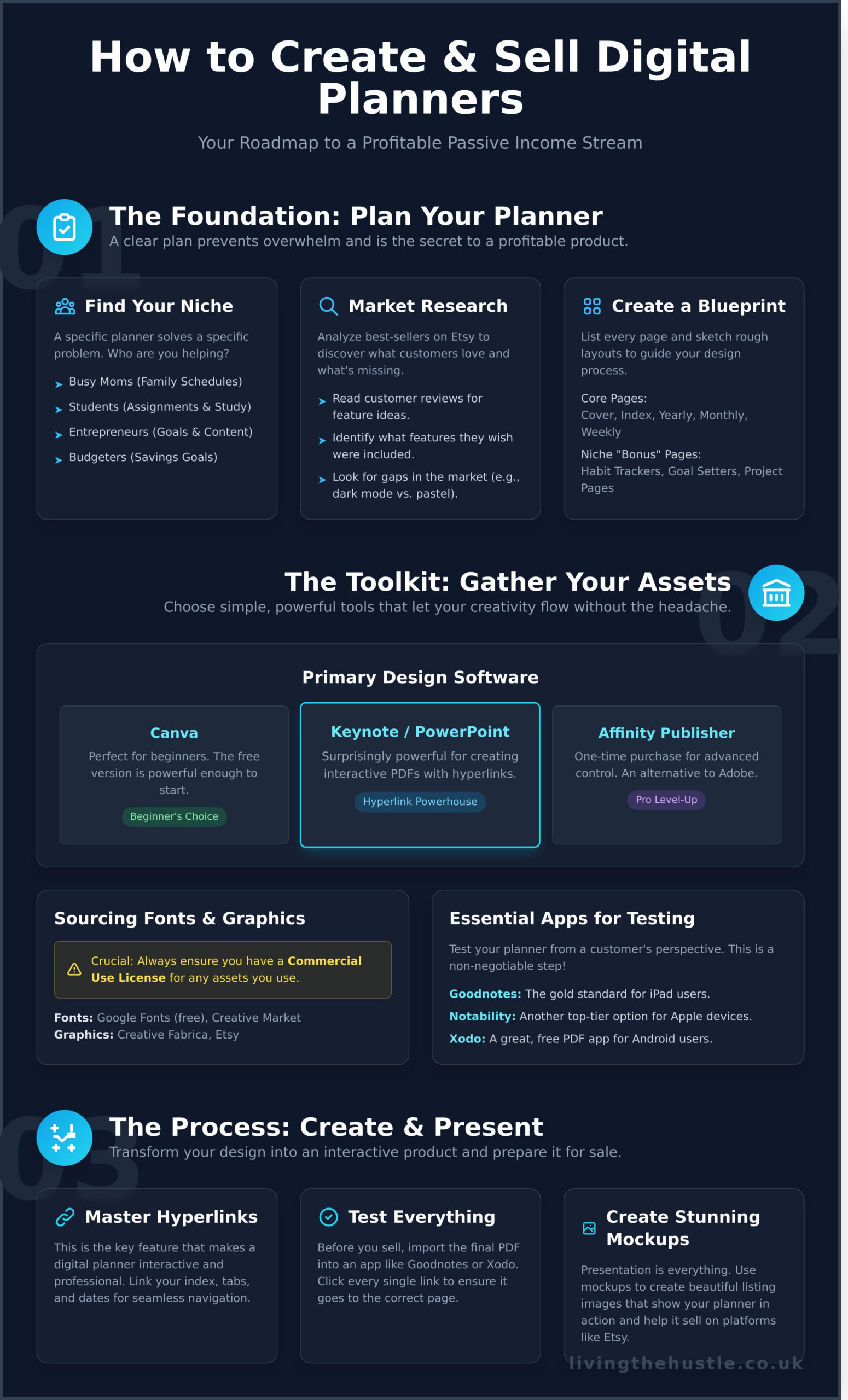
The urge to jump straight into Canva and start designing is strong, I get it! But the secret to learning how to make digital planners that actually sell-without the overwhelm-is starting with a calm, clear plan. Think of this as your foundation. Good research is what separates a passion project from a profitable product. While the history of personal organizers has evolved from paper to pixels, their core purpose remains the same: to solve a specific problem. Your first job is to decide which problem you want to solve.
This initial planning phase saves you hours of redesigns later and ensures you create a planner people are genuinely excited to buy and use.
Find Your Niche and Target Audience
Before you pick a single font, ask yourself: Who am I creating this for? A generic, do-everything planner gets lost in a sea of options. A specific planner, however, speaks directly to someone’s needs. A niche planner is a problem-solving planner. Are you helping:
- A busy mom organize her family’s schedule and meals?
- A student track assignments and study sessions?
- An entrepreneur plan social media content and track business goals?
- Someone manage their budget and savings goals?
Even highly specific niches, like a travel planner for a trip to Japan, can be incredibly successful. This audience has unique challenges, such as finding and booking tickets for local baseball games or concerts, which is a problem that dedicated platforms like Jasumo Tickets were created to solve.
Getting specific is your superpower.
Research What's Already Selling on Etsy
A little market research is your best friend. Head over to Etsy and search for ‘digital planner.' Don't just look at the pretty designs; read the customer reviews on the best-selling products. What features do people rave about? What do they wish was included? This is your roadmap. Look for gaps. Is everyone selling pastel planners? Maybe there's a market for a minimalist, dark-mode version. To understand what customers are actively searching for, using a tool is key. Need help? Check out this guide to eRank.
Outline Your Planner's Core Content and Layout
Now it’s time to build your blueprint. This gentle step will save you hours of design frustration later. Grab a notebook and list every single page you want to include. Start with the basics (cover, index, yearly, monthly, weekly layouts) and then add the bonus pages that serve your niche (habit trackers, goal setters, project pages, note sections). Once you have your list, sketch a rough layout for a few key pages. It doesn't have to be perfect-just a simple map to guide you when you start designing.
For inspiration on how other creators approach their projects and build their brands from the ground up, following a personal creative journal like the {OOAB} Only One Afi Blog can be a great source of motivation.
Gathering Your Tools & Assets: What You'll Need
Let's talk tools. Feeling a little overwhelmed by all the options out there? Take a deep breath. The good news is, you don’t need a complicated, expensive software suite to learn how to make digital planners that people love to buy. Our goal here is to choose simple, powerful tools that let your creativity flow without the tech-headache.
Getting everything ready now means a smoother, more enjoyable design process later. While we gather our creative assets, it's also smart to think ahead about the business side. Understanding the basics of where you'll eventually sell, as detailed in this helpful SBA Guide to Selling Online, gives you a clear vision from the very start.
Choosing Your Primary Design Software
This is where your planner will come to life. You don't need to be a professional graphic designer to create something beautiful and functional. The key is to pick one tool and get comfortable with it. Here are our top beginner-friendly recommendations:
- Canva: The perfect starting point for most creators. It’s incredibly intuitive, packed with templates and elements, and its free version is more than enough to get started.
- Keynote (Mac) or PowerPoint (PC): Don't overlook these! They are surprisingly powerful for creating interactive PDFs with clickable hyperlinks, a must-have feature for digital planners.
- Affinity Publisher: Ready to level up without a monthly subscription? This is a fantastic, one-time-purchase alternative to Adobe InDesign for more advanced control.
Sourcing Fonts, Graphics, and Clipart
This is the fun part-adding personality! But it comes with one crucial rule: you must have the right to sell what you create. Always ensure any fonts, graphics, or clipart you use come with a commercial use license. This protects your calm hustle in the long run.
- Beautiful Fonts: Find tons of free commercial-use fonts on Google Fonts. For more unique styles, browse the beautiful collections on Creative Market.
- Graphics & Clipart: Sites like Creative Fabrica and Etsy are treasure troves for everything from digital stickers to background textures. Just double-check that license before you download!
Essential Note-Taking Apps for Testing
Before you list your planner for sale, you need to test it to make sure every link works and the layout is user-friendly. This is a non-negotiable step. Download one of these popular apps to see your creation from your customer’s perspective:
- Goodnotes: The gold standard for many digital planner users on iPad.
- Notability: Another top-tier, feature-rich option for Apple devices.
- Xodo: A fantastic and free PDF annotation app for Android users.
The Creative Process: Designing Your Planner Step-by-Step
This is where the real magic happens in learning how to make digital planners-where your vision becomes a tangible product. Don't let the idea of designing hundreds of pages overwhelm you. The secret to a calm creative process is to take it one page at a time, focusing on a clean, user-friendly layout that feels intuitive to navigate. Consistency in your fonts, colors, and style is the key to a professional look that builds trust. And a gentle reminder: save your work frequently!
Setting Up Your Document and Master Pages
A solid foundation makes the entire design process smoother. Start by choosing a standard document size, like a vertical A4 or US Letter, as these work well on most tablets. To make navigation a breeze, set up your document with hyperlinked tabs along the side or top. The real game-changer here is using master pages or templates in your design software. This ensures every page has the same core layout, saving you hours of work and keeping your design beautifully consistent.
Designing Key Pages: Covers, Monthly, Weekly, and Daily Spreads
Your core pages are the heart of your planner. Begin with an attractive cover that instantly communicates your planner's niche and style-it's your customer's first impression! As you design your monthly, weekly, and daily layouts, prioritize clarity and function. Keep them uncluttered, leaving plenty of white space for users to write comfortably with a stylus. Remember, your unique design is your creative asset; understanding the basics of Protecting Your Intellectual Property is a crucial step for any creator. Want to create standout designs? Explore the principles in The Art of Design course.
Creating Extra Value with Bonus Pages
Bonus pages are what can set your planner apart in a crowded market. Think about what your ideal customer would find genuinely useful. Adding these thoughtful extras shows you understand their needs and are committed to helping them get organized. Consider including:
- Helpful trackers for habits, finances, fitness goals, or mood.
- A variety of note-taking pages (lined, grid, dotted, and blank).
- A dedicated page for digital stickers, or even a separate pre-cropped sticker file as a special bonus.
Adding Hyperlinks: The Secret to an Interactive Planner
Welcome to the step that brings your digital planner to life! If you've ever wondered what makes a digital planner ‘digital' instead of just being a simple PDF, the answer is hyperlinks. This is what allows your customers to tap on a monthly tab and instantly jump to that month's page, creating a smooth and intuitive experience.
Let's be honest: this is the most technical part of the process, and it can feel a little intimidating. But I promise, once you understand the simple concept behind it, it’s just a matter of repeating the steps. This is how you transform your beautiful, static design into a functional, dynamic tool that people will love to use every day.
How Hyperlinks Work in a Digital Planner
Think of hyperlinks as invisible threads connecting different parts of your planner. You create a shape (like a rectangle) or select a piece of text (like a date), make it transparent, and then link it to a specific page. For example, you’ll place an invisible shape over the “January” tab and link it to your January monthly spread. This has to be done manually for every single link-every tab, every date in your yearly calendar, and every item in your index page.
Step-by-Step: Adding Links in Your Chosen Software
Learning this skill is a game-changer when you're figuring out how to make digital planners that truly stand out. The exact process varies slightly depending on your software, but the core idea is the same: select an object and assign a link to it.
- In Canva: Create a shape or text box (like “Jan” for a tab). Select it, find the link icon (it looks like a chain) in the top-right menu, choose “Pages in this document,” and select the correct page number.
- In Keynote or PowerPoint: Right-click on your shape or text box. Select “Add Link” (or “Hyperlink”) and choose “Slide” to link to a specific slide within your presentation.
Pro-tip: To avoid overwhelm, build and design all of your planner pages first. Once the entire structure is complete, go back and add all of your hyperlinks at once. This makes the process much more methodical and less confusing.
Testing Your Links for a Flawless User Experience
Do not skip this step! Once you’ve added all your links, export your planner as an “Interactive PDF.” Open this test file in a note-taking app like Goodnotes, Notability, or Xodo. Methodically click on every single link you created. Check the monthly tabs, the weekly links, the index page-everything. A single broken link can frustrate a user, and this final quality check is absolutely crucial for getting glowing reviews and building a base of happy, repeat customers.
Preparing Your Planner for Sale: The Final Steps
You did it! You’ve designed a beautiful, functional digital planner. Take a moment to celebrate that accomplishment. Now, let’s take those final, gentle steps to get it ready for your shop. This is where we turn your amazing creation into a product that people are excited to buy.
These finishing touches are what separate a good product from a bestseller. Presentation is everything, and a clear, benefit-focused description will help your dream customers feel confident in their purchase. Let's get your planner launch-ready.
Exporting Your Planner as an Interactive PDF
First, you need to save your planner in the correct format. The goal is a high-quality, interactive PDF that works seamlessly for your customers. From your design software (like Canva or Keynote), find the ‘Export’ or ‘Download’ option. Here are the key settings:
- Select PDF as the file type (usually ‘PDF Standard’).
- Crucially, make sure any option like ‘Include hyperlinks’ or ‘Flatten PDF’ is checked so all your tabs and links work.
- Pro-Tip: Etsy has a 20MB file limit. If your file is too large, use a free online tool to compress your PDF before uploading.
Creating Eye-Catching Mockups for Your Etsy Listings
Your customers can’t physically hold your planner, so you need to help them visualize it. This is where mockups come in. Instead of just showing the cover, create several images that showcase your planner in action on a tablet screen. Display your most valuable pages-the weekly spread, a goal-setting template, or a habit tracker. Tools like Canva or Placeit.net offer easy-to-use mockup templates that look incredibly professional.
Writing a Description and Finalizing Your Listing
The final piece of learning how to make digital planners is writing a compelling product description. Clearly state what your customer will receive (e.g., “1x Hyperlinked PDF Planner”) and which apps it’s compatible with (like Goodnotes, Notability, etc.). But don't just list features; focus on the benefits. Explain how your planner will help them reduce stress, get organized, and finally achieve their goals. You're not just selling a file; you're selling a feeling of calm and control.
This process of creating and selling your own digital product is a powerful form of self-publishing. As your creative business grows, you might expand from planners to e-books or guides. For creators considering different publishing models, especially those in Poland, working with a modern publisher like Wydawnictwo AORA can open up new avenues for bringing digital and print works to a wider audience.
And that's it-you're ready to hit ‘publish'! For a deep dive into setting up your shop, pricing, and marketing, check out the Passive Income Society Course.
Your Calm Path to a Profitable Planner Business
And there you have it-a clear, gentle path from a simple idea to a finished digital planner. Seeing the steps laid out like this shows that you don't need to feel overwhelmed. You can do this, one simple action at a time.
Remember, success comes from thoughtful planning before you even design and from mastering those small details, like creating the clickable hyperlinks that make a planner truly interactive and user-friendly. You now have the foundational knowledge of how to make digital planners that don't just look beautiful, but that people are excited to buy and use.
This guide is your first step. If you're ready to go deeper and build a business that feels sustainable, we're here to guide you. As featured in Forbes and Business Insider, our programs are trusted by thousands of students looking for gentle, sustainable business growth. Ready to build your own calm and profitable business? Explore our courses.
You have the creativity and the passion. Now you have the roadmap. Go bring your amazing ideas to life!
Frequently Asked Questions
What is the best software to make digital planners for beginners?
For a gentle start on how to make digital planners, Canva is an amazing choice. It’s incredibly user-friendly, has a fantastic free version, and is packed with templates to spark your creativity without the overwhelm. If you prefer working offline, Apple Keynote or Microsoft PowerPoint are also powerful and surprisingly simple tools you might already own. You don't need expensive software to begin; start with what feels most comfortable and accessible to you.
Is selling digital planners on Etsy still profitable in 2025?
Absolutely! While the Etsy marketplace is more competitive than it used to be, profitability in 2025 is all about finding your unique niche. Instead of creating a generic planner, focus on a specific audience, like students, busy moms, or small business owners. High-quality design and a deep understanding of your customer's needs are what will make your planners stand out and sell consistently. It's not about being first; it's about being different and valuable.
Do I need an iPad or tablet to create a digital planner?
This is a common myth, but the simple answer is no! You create digital planners on a desktop or laptop computer using software like Canva, Keynote, or PowerPoint. An iPad and stylus are what your customers will use to write in the planner with an app like GoodNotes or Notability. While some designers use an iPad with Procreate to create custom artwork, it is absolutely not a requirement to get started on your creative hustle.
How do I deliver the digital planner to customers after they buy it?
It’s simpler than you think! When you list your planner on a platform like Etsy, you upload the file (usually an interactive PDF). After a customer makes a purchase, Etsy automatically sends them a link to download it instantly. If your file is too large for Etsy's limit, you can simply upload a PDF with a thank you note and a clickable link to your planner stored in a cloud service like Google Drive or Dropbox.
How much money can I realistically make selling digital planners?
Let’s be honest-it’s not an overnight path to riches. Your income will grow with your skills and effort. A brand new shop might make $50-$200 in its first few months. As you build your collection and learn marketing, that can grow into a consistent $500-$2,000+ per month or more. Success depends on your niche and the quality of your planners. It’s a marathon, not a sprint, and every sale builds your confidence.
What's the difference between a digital planner and a printable planner?
A digital planner is an interactive PDF designed specifically for use on a tablet (like an iPad) with a stylus and a PDF annotation app (like GoodNotes). It contains hyperlinks that allow you to jump between sections easily. A printable planner, on the other hand, is a PDF designed to be printed out on paper and filled in by hand. The core difference is the intended use: one is for a screen, and the other is for paper.